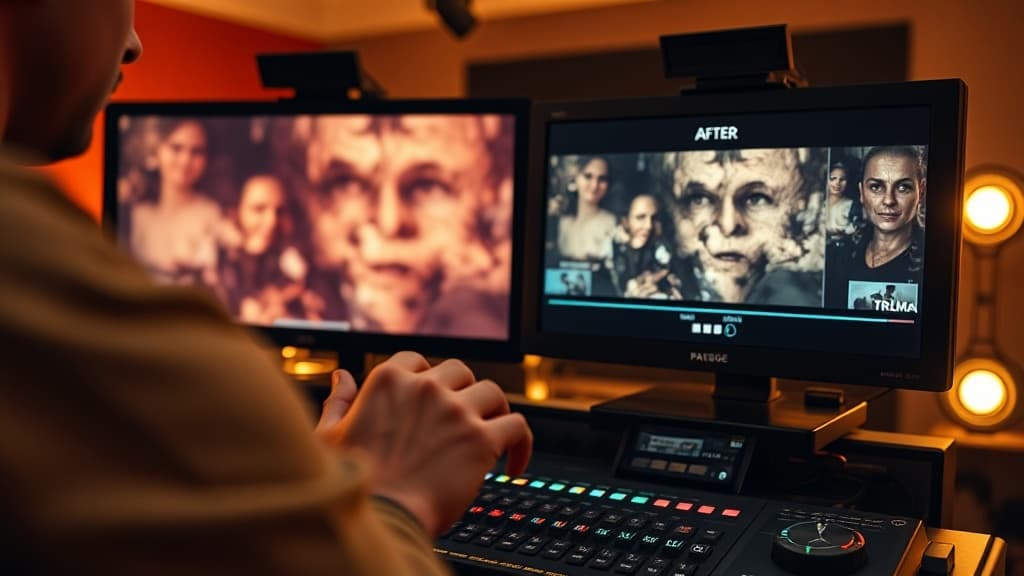
You generated an AI video. It looked incredible in the preview. Then you downloaded it and... blocky compression, weird flickering, morphing faces, and that unmistakable "AI look."
Sound familiar?
AI video artifacts are the gap between what you imagined and what you got. But here's the good news: most artifacts are predictable and fixable—if you know what's causing them.
This guide covers the most common AI video quality issues, why they happen, and exactly how to fix them.
What Are AI Video Artifacts?
Artifacts are visual glitches or quality degradations in generated video. They appear because:
- Model limitations — The AI couldn't interpret your prompt correctly
- Compression — Quality was lost during encoding
- Temporal inconsistency — Frame-to-frame coherence broke down
- Resolution mismatch — Generation or export settings were wrong
Let's break down each type and how to fix it.
1. Blockiness and Compression Artifacts
What it looks like: Pixelated squares, especially in areas with gradients (sky, shadows, skin tones). The "JPEG look" but in video.
Why it happens:
- Aggressive compression during generation
- Low bitrate export settings
- Wrong codec selection
How to fix it:
At generation time:
- Use higher quality models — Models like Veo 3.2 and Sora 2 produce cleaner outputs than older or faster models
- Request higher resolution — Generate at 1080p or 4K when possible, then downscale if needed
- Reduce motion complexity — Simpler scenes compress better
At export time:
- Increase bitrate — For 1080p, use at least 10-15 Mbps. For 4K, use 35-50 Mbps
- Use H.265/HEVC — Better compression efficiency than H.264
- Avoid double compression — Don't re-encode already compressed files
Multi-model solution:
Different models handle compression differently. If one model produces blocky output, try the same prompt on 2-3 alternative models. On aiVideo.fm, you can compare outputs from 160+ models to find which produces the cleanest result for your specific content.
2. Flickering and Temporal Noise
What it looks like: Brightness or color changes between frames. Surfaces that "shimmer" or "breathe." Random noise that pulses.
Why it happens:
- Frame-to-frame inconsistency in generation
- Model struggling with static elements
- Lighting interpretation changing between frames
How to fix it:
Prompt adjustments:
- Add "static camera" or "locked off shot" to reduce camera movement artifacts
- Specify "consistent lighting" or "even illumination"
- Use "smooth motion" or "fluid movement" keywords
Model selection:
- Kling 2.0 handles temporal consistency well for realistic footage
- Runway Gen-4 excels at maintaining stable backgrounds
- Veo 3.2 produces cinematic stability
Post-processing:
- Apply temporal denoising in editing software
- Use optical flow stabilization for minor flickering
- Consider frame interpolation to smooth transitions
3. Morphing and Distortion
What it looks like: Faces that shift, objects that warp, hands with wrong finger counts, bodies that bend impossibly.
Why it happens:
- AI hallucination during complex element generation
- Insufficient training data for specific poses/angles
- Prompt ambiguity about anatomy
How to fix it:
Prompt precision:
- Be extremely specific about anatomy: "person with both hands visible, five fingers on each hand"
- Specify exact poses: "standing still, arms at sides" rather than "person standing"
- Add style anchors: "photorealistic human, anatomically correct"
Technique: Image-to-Video
Instead of text-to-video for human subjects:
- Generate a perfect still image first using an image model
- Use image-to-video to animate it
- The consistent starting point reduces morphing
Model comparison:
Human faces and hands are handled very differently across models:
- Veo 3.2 — Best for realistic human faces
- Sora 2 — Strong on body movement coherence
- Kling 2.0 — Good for full-body shots
Test the same prompt across multiple models to find which handles your specific human content best.
4. The "AI Look" — Uncanny Valley Effect
What it looks like: Something feels "off" even if you can't pinpoint what. Overly smooth textures, perfect symmetry, lighting that doesn't match real physics.
Why it happens:
- Models trained on idealized/curated data
- Over-smoothing in generation process
- Lack of natural imperfection
How to fix it:
Add imperfection to prompts:
- "Natural skin texture" instead of just "realistic"
- "Practical lighting with shadows" instead of "well-lit"
- "Handheld camera movement" for organic feel
- "Film grain texture" or "Kodak film stock" for analog warmth
Post-processing for authenticity:
- Add subtle film grain (0.5-2% intensity)
- Apply minor color grading that breaks perfect white balance
- Introduce lens effects like subtle vignetting or chromatic aberration
- Add environmental audio that grounds the visual
Style anchors that work:
- "Documentary style, raw footage"
- "Behind-the-scenes film set, practical lighting"
- "Vintage 35mm film aesthetic"
- "Natural imperfections, organic texture"
5. Resolution and Upscaling Issues
What it looks like: Soft/blurry details, loss of fine texture, "painterly" look on edges, artifacts at pixel level.
Why it happens:
- Generating at low resolution then upscaling
- Using AI upscalers that add their own artifacts
- Mismatched aspect ratios causing stretching
How to fix it:
Generate at target resolution:
- Always generate at your final output resolution when possible
- If you need to upscale, use conservative upscaling (2x maximum)
- Match aspect ratio to your export format from the start
Better upscaling workflow:
- Topaz Video AI — Best for realistic footage
- Frame interpolation first — Add frames, then upscale
- Sharpen after upscaling — Restore edge definition
Platform-specific export:
| Platform | Recommended Resolution | Aspect Ratio |
|---|---|---|
| YouTube | 1920x1080 or 3840x2160 | 16:9 |
| TikTok | 1080x1920 | 9:16 |
| Instagram Reels | 1080x1920 | 9:16 |
| Instagram Feed | 1080x1350 | 4:5 |
The Multi-Model Prevention Strategy
Here's the key insight: Most artifacts are model-specific, not prompt-specific.
The same prompt can produce:
- Blocky output on Model A
- Flickering on Model B
- Clean, artifact-free video on Model C
This is why professional creators test across multiple models before committing to one output.
The aiVideo.fm advantage:
With 160+ AI video models in one interface, you can:
- Generate the same prompt across 4-5 models simultaneously
- Compare outputs side-by-side to spot which has fewest artifacts
- Pick the cleanest result without subscribing to multiple platforms
- Use Director Studio to sequence the best clips from different models
This approach treats artifact prevention as a selection problem rather than a fix-it-later problem.
Quick Reference: Artifact → Solution
| Artifact | First Try | Second Try | Third Try |
|---|---|---|---|
| Blockiness | Higher bitrate export | Different model | Post-process denoise |
| Flickering | "Static camera" prompt | Temporal denoising | Different model |
| Morphing | Image-to-video workflow | Specific anatomy prompts | Face-specific model |
| AI Look | Add imperfection prompts | Film grain post-process | Analog style anchors |
| Soft/blurry | Generate at final resolution | Conservative upscale | Sharpen post-process |
FAQ
Can AI upscalers fix generation artifacts?
Sometimes. Upscalers like Topaz Video AI can reduce blockiness and add detail, but they can't fix fundamental issues like morphing or temporal inconsistency. It's always better to prevent artifacts at generation than fix them later.
Why does the same prompt produce different quality on different days?
Most AI video models have some randomness (stochasticity) in their generation process. The same prompt can produce slightly different results each time. This is why running the same prompt 2-3 times and picking the best result is standard practice.
Is there a "best" model for artifact-free video?
No single model is best for everything. Veo 3.2 excels at cinematic realism, Sora 2 handles complex narratives, Kling 2.0 manages motion well. The best approach is testing your specific prompt across multiple models.
How do I know if artifacts are from generation or compression?
Generate your video, then watch it before any export or compression. If artifacts exist at this stage, they're from generation. If video looks clean until after export, it's a compression issue—adjust your export settings.
Start creating artifact-free AI video
Prevention beats post-processing. The fastest way to get clean AI video is testing across models to find which one handles your specific content best.
aiVideo.fm gives you:
- 160+ AI video models — More options means better results
- Side-by-side comparison — See artifacts before you commit
- Director Studio — Sequence the cleanest clips into polished projects
- Quality export presets — Optimized bitrates for every platform
Stop fighting artifacts after the fact. Find the right model for your content.
Try aiVideo.fm free — 160+ models, one interface, artifact-free video.
Related guides: Beginner's Guide to AI Video Generation | Best AI Video Editing Tools | Why Your First AI Video Should Be Weird